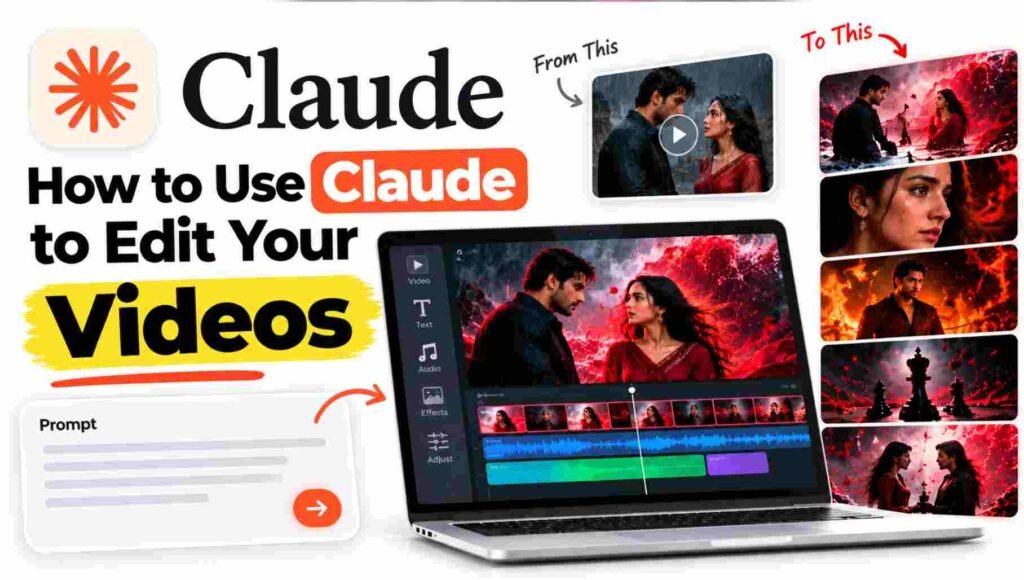
When you use AI to edit a video, you still want it to feel like your video. The visuals should match what you had in mind, the text should appear at the right moment, and your original voice should stay the way you recorded it.
That’s where clear instructions help. Before you ask the editor to make changes, you need to decide what you want it to change and what you want it to keep. You also need to know which parts your chosen tool can actually handle.
In this guide, you will learn how to edit an existing video using a claude, preserve your original audio, synchronize visuals with lyrics, maintain consistent characters, and use a ready-to-use Master Prompt that you can customize for different projects.
What does Claude AI video editing lets you do?
With Claud AI video editing, you work through a tool that processes your video. Depending on the editor, you can upload footage, describe the changes you want, generate visual elements, arrange clips, and export the result.
The important thing to check is whether you can edit footage you already have. Some tools focus on generating new clips from text or images. You may still be able to use those clips, but you’ll need to assemble them and add your original audio afterward.
So before you spend time writing a detailed prompt, open the editor and check its workflow. Find out whether it accepts your video, what happens to the audio, and whether you can make adjustments after the first result.
Get your files ready before you open the editor
Keep your original video somewhere safe and work from a copy. Check its length, dimensions, frame rate, and audio track so you know what you’re starting with.
I’d also keep a separate copy of the audio if you want to preserve the original voice or music. That gives you a clean track to use if the AI tool changes or removes the sound.
Have the complete script, lyrics, or dialogue ready too. Include the whole recording, not just the lines you want to highlight. The pauses and ending matter when you’re planning the edit.
If people appear in your video, gather any reference images you want the editor to follow. Where supported, these can help you specify their appearance across different shots. You can also prepare visual references for the lighting, colors, and overall look you want.
Finally, decide where you’ll publish the video. That helps you choose the frame shape and export settings before you start placing text or framing important action.
Tell the editor what you want to keep
It’s easy to focus on the changes and forget to mention what already works. Make both clear in your instructions.
If you want your original audio untouched, say so directly. Tell the editor to preserve the voice, wording, pitch, speed, pauses, music, and ending. Specify whether additional music or sound effects are allowed.
Where the editor supports it, keep the original audio on a separate locked track. If the tool only generates visuals, you’ll need to bring those visuals into an editor and place them over your original recording.
The same applies to people in the footage. Tell the editor which faces, hairstyles, outfits, and other identifying details should remain consistent. Check the result yourself, because including that instruction doesn’t guarantee the tool will follow it in every shot.
Get your editing prompt from ChatGPT
You don’t have to write the entire editing brief yourself. You can ask ChatGPT to organize your requirements into one master prompt that you can use in your chosen editor.
Start by explaining what your video currently contains. Give its actual duration and describe the visuals and audio. Then explain what you want the finished edit to look and feel like, including any changes to lighting, colors, camera movement, transitions, effects, or on-screen text.
Be clear about which details are essential. If the original voice must stay unchanged or the same person must appear throughout, put that in your request rather than assuming it will be understood.
Paste your complete script or lyrics. You can provide screenshots or reference images if your interface accepts them, and use video or audio analysis only where it’s supported. Without access to the recording, ChatGPT can help plan the visuals, but it cannot verify when the words are actually spoken.
Tell ChatGPT which editor you’ll use and any limits you’ve already checked. That gives it a better basis for preparing instructions you can put into practice.
What to include in your request
Before you send your message, check that you’ve supplied:
- What your existing video contains and its actual duration.
- The complete script, lyrics, or dialogue.
- The visual changes you want and any references you want followed.
- The audio, appearance, or footage details that must stay unchanged.
- Your editor’s supported features and processing limits.
- Your required output format, dimensions, and frame rate.
Ask ChatGPT to turn those details into one complete prompt covering the scene plan, audio preservation, text timing, visual consistency, and export requirements. It should flag anything that needs a separate editing step and leave unverified timings clearly marked.
Read the prompt before you copy it. Make sure it contains the full script, reflects your choices, and hasn’t added scenes or effects you didn’t ask for. If you need changes, ask for the complete revised version so you have one final prompt to work with.
Use the prompt in your Claude
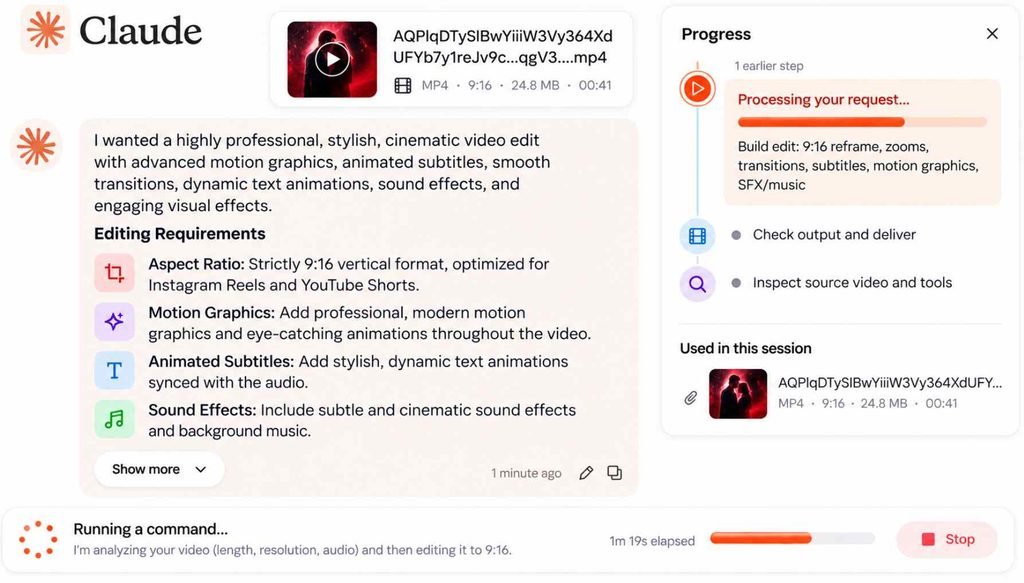
Once you’re happy with the instructions, upload your video and paste the prompt into the instruction field.
If you are using the free plan, make sure your video is no larger than 30 MB and preferably under 1 minute long. Videos exceeding these limits may not upload or edit successfully.
If your video is larger than 30 MB, compress it before uploading. For the best results, use a short video of less than 1 minute and keep the file size below 30 MB.
Tip: Shorter, smaller videos are generally easier to process on the free plan.
Check Hindi text before you finish
If you’re adding Hindi lyrics or captions, check the Devanagari text closely. Look at the spelling, matras, word order, and line breaks as well as the timing.
When the tool struggles to generate accurate lettering inside the footage, add the text as a separate layer in the editor. You’ll have more control over the font, placement, and corrections without having to regenerate the whole shot.
Keep the text readable against the background and leave enough space around the edges. Preview it at a size close to how your audience will watch it. Text that looks comfortable on your editing screen may be difficult to read on a phone.
Watch the exported video before you publish
Don’t stop at the preview inside the editor. Open the exported file and watch it from beginning to end with the sound on.
Here’s what I’d check before calling the edit finished:
- The original voice and music are complete, with the intended speed and pauses.
- The captions follow the recording and contain the correct wording.
- Faces, hands, clothing, and other visible details remain consistent.
- The transitions work without flickering, repeated frames, or abrupt changes.
- Important text and action stay inside the visible frame.
- The opening and ending are complete, without missing audio or an unexpected cut.
If something is wrong, correct that part and check the new export. Pay attention to the middle of the video too; reviewing only the opening can leave problems unnoticed.
Keep in mind that exporting at 4K doesn’t automatically give you footage with native 4K detail. Inspect the finished video for sharpness and artifacts rather than judging the quality by the export label alone.
Reusing your prompt for another video
You can keep the structure of a prompt that works, but update it for each recording. Replace the full script, change the scene plan, and check the new duration and audio timings.
Review the visual direction and character details too. Remove instructions that belonged to the previous video so they don’t influence the next edit by accident.
Keep the audio-preservation and quality checks when they still apply. What you shouldn’t carry over without checking is the timing. Even similar wording can be delivered differently in a new recording.
Can you finish the whole video with one prompt
Sometime Yes,
A detailed prompt helps you explain the edit, but you’ll still need to review the result. Confirm the audio, timing, and visual consistency in a short section first. Once those are working, you can carry the same decisions through the full video with a much clearer idea of what needs your attention.
Example of the Prompt
Edit the attached original 41.2-second vertical video into an intense, cinematic Hindi dark-romantic 3D animated music video featuring one animated boy and one animated girl.

Final output specifications:

Resolution: 1920 x 1080  pixels

Aspect ratio: 9:16 vertical

Frame rate: 25 fps

Duration: Preserve the original 41.2-second timeline and exact audio ending

Format: High-quality MP4

Style: Premium cinematic 3D animation, dark romance, dramatic motion graphics

Characters: One consistent animated boy and one consistent animated girl

Language: Hindi (Devanagari)

Audio: Original uploaded audio must remain unchanged

2. AUDIO IS LOCKED — HIGHEST PRIORITY

Use the uploaded original audio as the master timeline.

Preserve the original voice, delivery, pitch, pacing, pauses, pronunciation, background audio and exact timing.

Do not regenerate, replace, translate, time-stretch, retime, shorten, rearrange or cut the original voice. Do not generate a new voice.

Before editing, analyze the audio and identify the actual start and end timestamps of every spoken word and phrase. Build a word-level timing map from the original recording.

Synchronize lyric text entrances, facial expressions, character actions, camera impacts, visual transitions, energy pulses and scene changes to the actual spoken timestamps.

Do not divide the 41.2 seconds equally among the eight scenes. Follow the actual voice rhythm and pauses.

Keep the original voice clearly audible. Avoid loud music, excessive bass, unnecessary sound effects or additional dialogue. Do not add effects that obscure the original recording.

3. CHARACTER DESIGN — CRITICAL

The entire video must feature clearly animated 3D characters, not realistic human beings.

Main Character A — Animated Boy

Design a handsome young adult Indian animated boy with:

Stylized 3D facial features and expressive animated eyes.

Artistically sculpted facial proportions.

Carefully designed black hair with a distinctive silhouette.

A confident, intense and emotionally expressive appearance.

A fitted black outfit with subtle dark-crimson accents.

Smooth, polished stylized skin and detailed 3D clothing.

Natural-looking but clearly animated body movement.

His expressions should communicate intensity, heartbreak, confidence, anger and emotional confrontation, depending on the lyrics.

Main Character B — Animated Girl

Design a beautiful young adult Indian animated girl with:

Stylized 3D facial features and expressive animated eyes.

An attractive, artistically designed animated face.

Long, flowing black hair.

An elegant black and deep-red outfit.

Graceful stylized proportions and polished 3D materials.

Expressive eyes, eyebrows and facial animation.

Natural animated movement, including hair, clothing and head turns.

Her expressions should communicate sadness, defiance, emotional tension, heartbreak and strength.

Required Character Style

Use premium stylized 3D animation with the visual quality of a high-end animated cinematic music video.

The characters must look deliberately designed and animated, with appealing stylized faces, slightly exaggerated expressions, smooth materials, detailed hair and cinematic lighting.

They must NOT look like:

Real actors or photorealistic humans.

Live-action footage.

Anime or manga characters.

Flat 2D cartoon drawings.

Video-game default avatars.

Random AI-generated people with changing faces.

The final output must immediately read as a cinematic animated boy-and-girl music video.

Character Consistency Rules

Create the two character designs first and maintain them throughout all eight scenes.

Never change their faces, eye styles, hairstyles, outfits, body proportions or defining features between shots.

Use the same character models in close-ups, wide shots, profile shots, silhouettes and moving camera shots. Expressions and poses may change, but the character identities must remain identical.

Do not introduce mysterious characters, sorcerers, monsters, armored rivals, additional protagonists or random people.

4. ART DIRECTION AND VISUAL ATMOSPHERE

Create a dark, intense, emotional and cinematic atmosphere using:

Deep charcoal-black environments.

Rich crimson-red and burgundy lighting.

Ivory-white Hindi typography.

Subtle orange highlights during fire sequences.

Volumetric smoke and drifting particles.

Floating red rose petals.

Reflective wet surfaces.

Dramatic rim lighting and controlled shadows.

Symbolic waves, wind, flames, fractured stone and abstract energy.

Cinematic depth of field and atmospheric perspective.

Use realistic environmental effects combined with stylized 3D animated characters.

The characters remain stylized; the environments and particles can be detailed and cinematic.

The mood should feel like a dark romantic confrontation between two animated characters, with heartbreak, emotional power and dramatic tension.

Avoid gore, graphic injury, excessive violence, comedy, childish colors, random fantasy creatures and unnecessary visual clutter.

5. EXACT HINDI LYRICS

Use the following lyrics exactly as written. Do not change spelling, punctuation, matras or words.

मैं बाढ़ लिखूँ, तू बह जाए,

तूफ़ान लिखूँ, तू उड़ जाए।

तेरे सीने पर पैर रखूँ मैं,

धड़कन तेरी बंद हो जाए।

जो आग लिखूँ, तू जल जाए,

मैं श्राप लिखूँ, तुझे लग जाए।

जो खेल लिखूँ, हो ख़त्म तेरा,

मैं मौत लिखूँ, तुझे आज आ जाए।

Display the complete lyric phrases for comprehension and emphasize selected words with larger animated typography.

6. SCENE-BY-SCENE VISUAL SEQUENCE

SCENE 1 — “बाढ़”

Visual concept: Emotional flood

Begin with a cinematic close-up of the animated boy holding a glowing crimson writing stroke in the air. His hand movement creates a trail of red light.

Cut to a wide shot of the animated girl standing on a dark, reflective surface. Her hair and dress move gently in the wind.

A massive stylized cinematic water wave rises behind her, towering over the environment. The water should feel powerful, dramatic and visually detailed.

As the voice reaches “बाढ़”, display the word prominently in large ivory-white Devanagari typography with crimson accents.

The text should emerge through a water-ripple mask, as if revealed by the wave itself.

On “तू बह जाए”, animate the wave surging forward while the girl turns and reacts emotionally. Use layered water particles, subtle camera movement and atmospheric spray.

Keep the boy and girl visible as recognizable animated characters.

SCENE 2 — “तूफ़ान”

Visual concept: A storm of emotions

Transition into a dark cinematic environment with strong wind.

Show the animated girl in a medium shot as red rose petals, dust, smoke and ink-like particles begin circling around her.

The animated boy appears in the foreground, looking toward her with an intense expression.

A large rotating vortex develops behind them, with curved crimson energy trails and flying particles.

On “तूफ़ान”, reveal oversized Hindi typography through a swirling wind effect.

On “तू उड़ जाए”, animate the particles and rose petals accelerating around the girl. Let her hair and clothing respond naturally to the wind.

Use a smooth camera orbit and a short, controlled impact zoom on the appropriate vocal beat.

The text must remain readable throughout the distortion.

SCENE 3 — “सीने / पैर”

Visual concept: Symbolic confrontation

Create a dramatic low-angle shot of the animated boy and girl facing each other across a fractured stone surface.

The boy stands tall in the foreground while the girl looks at him with a powerful, emotional expression.

On “सीने”, use a close-up of the girl's expression, followed by a wider composition showing their opposing silhouettes.

On “पैर”, a large stylized shadow moves across a fractured stone platform between them. A section of the surface cracks under the shadow's weight, symbolizing emotional dominance and betrayal.

Do not show graphic violence or actual injury.

Use dramatic red rim lighting, a short controlled camera impact and subtle dust particles.

Display the complete lyric phrase in a clear position, with “सीने” and “पैर” emphasized at their actual vocal timestamps.

SCENE 4 — “धड़कन / बंद”

Visual concept: A heart that stops

Shift to a quieter, emotionally intense composition.

Show the animated girl in a cinematic close-up. Her expressive eyes convey heartbreak as she looks toward the boy.

The boy appears in the background, softly out of focus, separated from her by a dark reflective space.

Between them, create a glowing crimson heart-shaped energy ring. It emits gentle pulses, accompanied by a subtle animated waveform.

The ring expands and contracts with the visual rhythm.

On “धड़कन”, intensify the red glow and waveform pulses.

As the actual spoken word “बंद” begins, make the waveform stop and the heart-energy ring freeze. Allow the glow to fade gradually into darkness.

The visual stop must align precisely with the word “बंद”, not an estimated timestamp.

Avoid additional heartbeat sounds that interfere with the original audio.

SCENE 5 — “आग / जल”

Visual concept: Burning emotions

Transition into a dramatic environment illuminated by orange flames and deep crimson light.

The animated boy stands on one side while the animated girl appears across the scene, separated by swirling smoke and floating embers.

Flames rise along the ground and around environmental structures, creating symbolic destruction without showing either character being injured.

On “आग”, reveal bold ivory typography with glowing orange-red edges.

On “जल”, animate the text edges breaking apart into sparks and glowing embers.

Use a slow cinematic camera push, realistic flame simulation, animated reflections and layered smoke.

Keep the characters clearly stylized and visually consistent. The fire and particles may be highly detailed.

Avoid turning the scene into a cartoon fire effect or a photorealistic live-action sequence.

SCENE 6 — “श्राप”

Visual concept: The broken bond

Show the animated boy extending one hand toward the camera.

Crimson ribbons, flowing ink-like trails and glowing particles spiral outward from his hand. These effects should appear as abstract visual symbolism, not literal spellcasting.

A large decorative circular red-light pattern forms between the boy and girl, suggesting a fractured relationship.

The girl watches from the opposite side, her expression mixing sadness and defiance.

As “श्राप” is spoken, reveal the word in oversized Devanagari typography. Let a circular mask expand behind the letters while fine red particles trace the surrounding shapes.

Use controlled parallax, a subtle camera orbit, dramatic shadows and expressive facial animation.

No mysterious sorcerers, magical creatures, fantasy costumes or additional characters.

SCENE 7 — “खेल / ख़त्म”

Visual concept: The final move

Create a dark cinematic chessboard-like environment with glossy black tiles and narrow crimson light lines.

The animated boy and girl stand on opposite sides of the composition.

Begin with a slow overhead camera movement, revealing the geometric floor beneath them.

A black king chess piece stands between the characters. As the lyric progresses, fractures spread across the chessboard.

On “खेल”, show the chess piece and the two characters in the same composition, symbolizing a final confrontation.

On “ख़त्म”, the king piece falls and breaks apart into dark fragments and crimson particles. The cracks spread outward across the board.

Display the complete lyric phrase with the words “खेल” and “ख़त्म” emphasized at their actual spoken timestamps.

Use a cinematic camera push, subtle debris movement and dramatic red reflections.

Do not add any new sound or dialogue.

SCENE 8 — “मौत”

Visual concept: The final darkness

Build toward the strongest visual moment of the entire video.

Show the animated boy and girl facing one another in a vast, dark environment filled with drifting red rose petals, smoke and subtle crimson particles.

Start with a wide cinematic shot, then gradually push the camera closer as the vocal intensity rises.

A huge shadow spreads across the background, slowly engulfing the environment. The boy and girl remain recognizable in silhouette until the darkness surrounds them.

On “मौत”, display the word in enormous ivory-white Devanagari typography with restrained crimson illumination.

Synchronize the scale increase and camera movement with the actual vocal climax.

On “तुझे आज आ जाए”, let the typography fracture into tiny ash-like particles that drift downward and disappear.

Finish with complete darkness only when the original audio reaches its actual ending.

Do not cut off the final voice, add a new ending sound or fade the audio prematurely. Preserve the original audio exactly as required.

7. HINDI TYPOGRAPHY AND TEXT ANIMATION

Use a professional Devanagari font such as Noto Sans Devanagari or Mukta.

Render the Hindi lyrics as properly shaped text using a real font-rendering system. Do not ask a generative image model to invent the Hindi letters inside the image.

Required typography:

Correct spelling, matras, conjuncts and punctuation.

Clear ivory-white text with selective crimson-red accents.

Complete lyric phrases visible for comprehension.

Oversized highlighted words for dramatic emphasis.

Controlled scale, position, spacing, opacity and mask animations.

Subtle distortion only when it does not damage legibility.

Consistent text alignment and visual hierarchy.

Never scramble letters, detach matras, substitute random symbols or generate gibberish.

Keep all lyrics inside mobile-safe margins and away from the extreme top and bottom edges.

Use clean text layers so the typography remains editable in the final project.

8. MOTION GRAPHICS AND CAMERA MOVEMENT

Use meaningful animation throughout the video rather than a static slideshow.

Include:

Multiplane parallax and cinematic depth.

Smooth camera pushes and pulls.

Controlled orbiting shots.

Short impact zooms on selected words.

Expressive animated facial movements.

Character head turns and body movement.

Flowing hair and clothing.

Moving smoke and atmospheric particles.

Water simulation, wind streaks and swirling petals.

Flame flicker, sparks and glowing embers.

Animated light sweeps and reflective surfaces.

Fracturing stone and chessboard geometry.

Smooth transitions driven by the lyrical meaning.

Vary the motion according to the emotional intensity of each lyric.

Do not use constant camera shaking, repetitive flashing, random zooms or identical transitions for every line.

9. CINEMATIC COLOR GRADING

Maintain a consistent visual identity throughout the complete video.

Primary colors:

Charcoal black.

Deep crimson red.

Burgundy.

Ivory white.

Restrained orange during the fire sequence.

Use detailed shadows, controlled highlights, subtle film grain, selective bloom, cinematic depth of field and carefully applied motion blur.

Preserve visible character details in dark scenes.

Avoid crushed blacks, excessive red saturation, distracting lens flares and overexposed typography.

The final result should feel like a professionally directed dark-romantic animated music video.

10. FINAL QUALITY CONTROL

Before exporting, review the entire video from the first frame to the last.

Verify all of the following:

The original audio remains unchanged and synchronized.

Every lyric entrance matches the actual spoken timestamp.

No lyric line has been assigned an assumed equal duration.

All Hindi words and punctuation are correct.

Devanagari letters and matras render properly.

The same animated boy and girl appear consistently in every scene.

The characters remain stylized 3D animations rather than realistic humans.

Facial expressions and character movements support the lyrics.

No unnecessary static frames, repeated frames or visual glitches occur.

Transitions are smooth and synchronized.

Typography remains readable on mobile screens.

No watermarks, logos, added dialogue or extra lyrics appear.

No video or audio clipping occurs.

The final audio ending remains intact.

The final export meets the required resolution, aspect ratio and frame rate.

11. FINAL DELIVERABLES

Export the completed music video as:

MP4 video.

1920 x 1080 px resolution.

9:16 vertical aspect ratio.

25 fps.

Original audio preserved.

Full original duration and ending retained.

If supported by the editing software, also provide the editable project, character assets, typography layers, animation layers and associated media files.

FINAL CREATIVE DIRECTION: Produce a premium cinematic dark-romantic 3D animated music video featuring one consistent stylized Indian animated boy and one consistent stylized Indian animated girl. Use intense crimson lighting, emotional expressions, dramatic environments and sophisticated motion graphics. Every visual event must be synchronized to the original Hindi voice. The final result must look like a carefully directed animated music video, not a slideshow, not live-action footage and not a generic AI template.
I hope you found this blog helpful and learned how to use Claude to edit your videos with the help of a well-structured prompt. As demonstrated in the example above, the right instructions can help you turn your creative ideas into a clear, detailed video editing plan.
You don’t need to be a professional video editor to get started. Simply provide your complete script, explain what your current video looks like, describe the editing style you want, and let Claude generate a customized prompt for you. You can then use that prompt in a compatible Cloud AI Video Editor to achieve your desired results.
Remember to review the output, check audio synchronization, and make adjustments wherever necessary.
If you found this guide useful, share it with other creators who want to explore AI-powered video editing. Keep experimenting, keep creating, and turn your ideas into amazing videos!